
The eNudge drag and drop email editor tool is packed with features which will help you create beautiful, mobile responsive emails. We provide in excess of 180 free email templates for your use either as the design of your campaign, or the starting point for your own design. Every email template provided within eNudge is already mobile responsive. You can of course adjust the responsiveness or any other aspect of the design, to suit your requirements.
We have recorded a video demonstrating using an eNudge template in your email campaign, or continue reading this article for instructions.
Insert a template
Open your eNudge Email campaign and navigate to the Email Content & Test screen.
Click on the Edit button at the bottom of the email content.
3. Once the eNudge drag and drop editor has opened on screen, click on the ‘Choose Template’ button in the top navigation.

Insert a template by clicking on the ‘Use Template’ button. Any templates you have created will be listed first, followed by the provided templates.
If you are new to templates, we recommend starting with one of the Alpha Collection, which are listed straight after your templates.
Filter
To quickly find a template of a particular theme, or by name, type part of name or description of the template in the filter box at the top of the templates to see just matching templates.

After inserting a template, you can edit the contents in the usual way, by inserting your own images, changing the text, adding hyperlinks, changing colours and so on.
The Alpha Collection
Templates in this collection feature a variety of layouts commonly used by email marketers.
Here are examples of some of the layouts in the Alpha Collection:
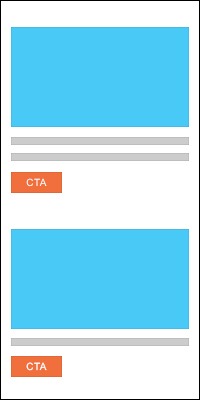
Single column with full width images
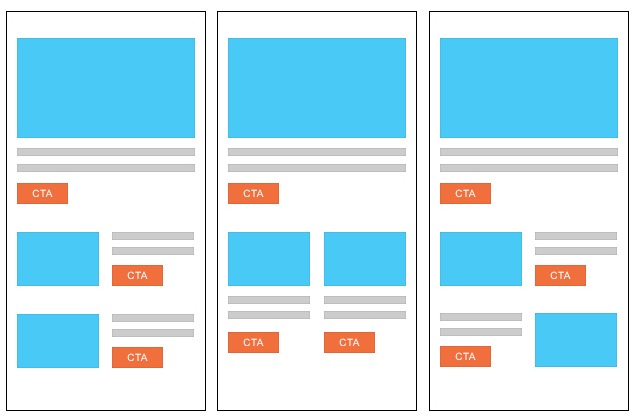
Layouts with multiples columns
Saved Rows
To build out your email campaign, you might want to repeat rows, or even re-use rows of content between your campaigns. Read more about Saved Rows.