
The eNudge Save as Template feature gives you the flexibility to add your own templates to make it easy for you to re-use them on an ongoing basis.
You can add a template, edit it later, and of course insert into any draft email campaign to make creating consistent looking emails quick and easy. When you no longer need the template, you can delete it.
Your own templates will appear at the top of the list of templates that you see when you choose to Insert a template into your email message body.
We recommend the following steps for a robust custom template implementation:
Use one of the eNudge mobile responsive email templates as a starting point, by creating a new campaign and choosing a template to get started.
Edit the content of the email message to include the sections you will most commonly need, and the right colours and imagery for your brand.
Mobile responsiveness. Don’t forget to check the mobile view of your various sections of your email template. Ensuring this is done in the template will reduce the effort required for your future emails based on the template.
Test – it is very important to send yourself test emails so you can view how the emails are being rendered by different inbox providers (e.g. Outlook, Apple Mail, Gmail etc) and also on desktop computers and mobile phones.
If you have trouble making your email template look and function just as you want it to, don’t hesitate to get in touch so that we can help.
How to Add a Template
1. Create a new email campaign, and edit the content to match your requirements. You might like to start your campaign design by first choosing an existing template.
2. Click on the ‘Save as Template’ button in the top navigation.
3. Fill in the form:
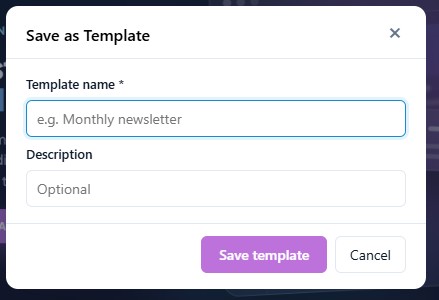
Template Name*: give the template a unique name to allow easy identification.
Description: (optional) write a brief description or provide additional details.
Click on Template from the main navigation, and you will see your new template at the top of the list of templates. Click Edit to open the template and continue editing.
Your template can be inserted into a draft eNudge email or message series email via the Choose Template option.