
Adding hyperlinks to text and images inside your eNudge emails is vital to achieving engagement with your organisation as a result of your message.
Images
To add a hyperlink to an image, select the image inside the Editor Preview, then in the right hand panel, paste your URL into the
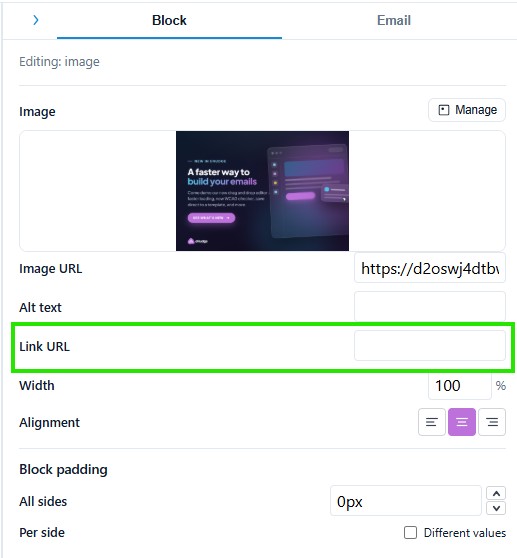
By default, the link will open in a new web page.
Text
To hyperlink text within your message:
- Double-click on the text to go into edit mode.
- Select the words to be hyperlinked, and click on the Link icon in the popup toolbar.
- Choose the appropriate type (Website is the default), and paste the web address into the URL field.
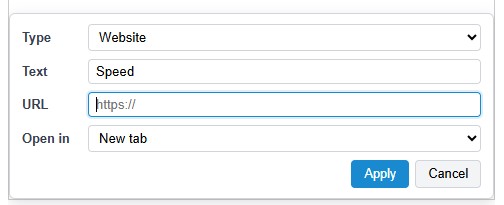
By default the link will open in a new tab, which is the recommended behaviour.
You can also specify whether the link is underlined or not, and choose a colour for the hyperlink, by changing the settings for the block in the right hand panel.
Most of the time you will want to use the default Link Type of ‘URL’ but you can also use the following Link Types:
‘Telephone’ – causes the link to make a phone call to a specified phone number.
‘Email’ – causes the link to start a new email to the specified email address.
Click Apply to save the link settings, and return to editing your content.