
To copy a pre-existing email campaign into a new one:
Navigate to CAMPAIGNS via the main menu.
Click on the 3 dots on the right hand side of the campaign you want to duplicate.
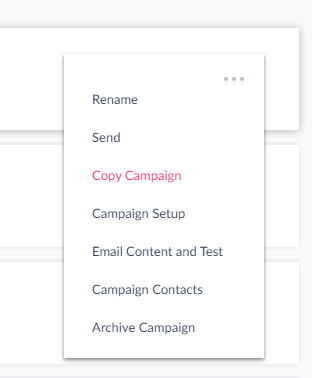
Select the Copy Campaign option from the pop-up.
Fill in new campaign details such as New Campaign Name, New Campaign Description etc. You will also have an option to attach the contacts associated with the campaign you are copying by ticking Copy Campaign Contacts into New Campaign.
Go to the newly created campaign’s Campaign Details page and update the settings as required. You can of course edit the content in the new draft campaign as well.
NB: if the campaign you are copying was created in an older editor, you may need to make some minor adjustments to the contents to ensure that the layout reflects the original campaign.
Tip
If you have lots of campaigns, type in part of the name or description of the campaign you are looking for in the Filter box at the top of the campaign list to see just campaigns with a matching name or description.