
Accessibility (WCAG compliance) is very important for email campaigns; you want your message to be easily read and understood by anyone, including people with a disability such as vision impairment. To read about all the concepts of accessibility, such as colour contrasts, readability and much more, please read our article: eNudge | Guide to Accessibility.
The following elements can be set through the eNudge drag and drop editor to help with accessibility tools commonly used by persons with a disability.
Adding Meta Data to your Email
To add the language and a title to your Enudge email campaign:
- While inside the eNudge drag and drop editor, click on the Email tab in the right hand panel.
- At the top of the panel, you will see a title field – add a name for your email that helps to describe the contents.
- The language of your content can be chosen from the ‘Language’ drop down – that defaults to English.
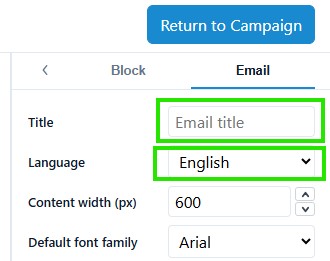
Image ALT tags
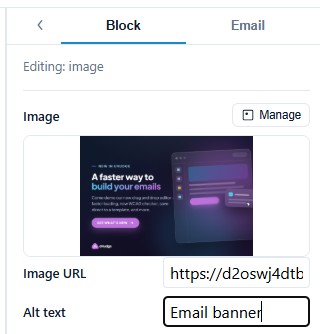
Helping screen readers to understand the purpose or content of an image is an important aspect of accessibility. To add an alt tag (aka alternate text) for an image inside your email:
- Click on the image in your email campaign.
- In the right hand panel, type in the descriptive text about your image in the Alt text box.
The eNudge editor also provides an accessibility checker to help you correct any accessibility issues within your email. To access the checker in the bottom of the Email inspector panel click on the ‘Accessibility Check’ button:

You will then see a list of recommendations (errors and warnings) to improve accessibility within your campaign. An example of results are shown below.
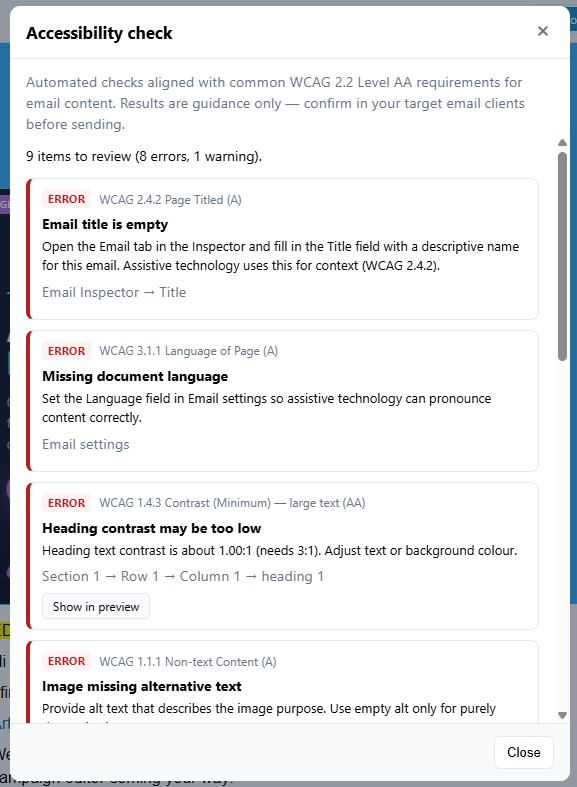
Each item advises whether it is an Error or a Warning followed by the section of the accessibility guide that is relevant to the issue reported. You can get further details of the section in the recommendations via the Web Content Accessibility Guide website.
The first element ‘Email title is empty’ can be resolved by adding a title as described above i.e. don’t leave ‘Email title’ which is the default; replace that with your description.
‘Missing document language’ can be resolved by choosing the language of your campaign.
‘Heading contrast may be too low’ can be resolved by changing the background colour or text colour, to increase the difference between the two colours.
‘Image missing alternative text’ can be resolved by adding a description to the image/s that are missing alt text.
As noted in the Accessibility Checker, eNudge provides automated checks aligned with common WCAG 2.2 Level AA requirements for email content. Results are guidance only; you may need to confirm the accessibility in your target email clients before sending.