
The Enudge Drag and Drop editor makes it super easy to add a set of social media icons into your email campaigns. We recommend that you setup your content, and then save it for later use in other campaigns.
To add social media icons into your email campaign:
Drag and drop the ‘Social’ content element into a row / column of your email campaign.
2. In the right hand panel:
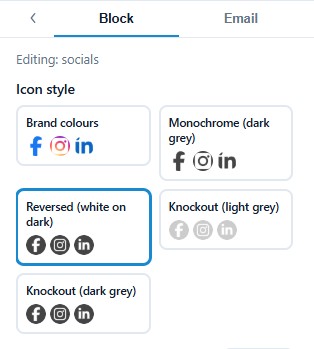
– choose the desired style for your icon set from the options:
– then add each item to your set of icons, choosing first the ‘Network’ and then adding the specific URL needed for your organisation.
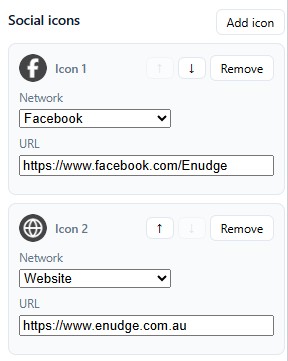
Use the down and up icons (to the left of the Remove button) to change the order.
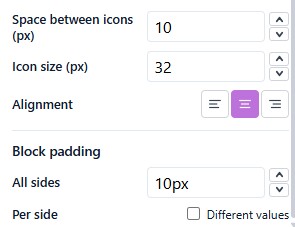
The alignment and icon spacing options, along with the padding, allow you to fully control the look of the set of social media icons.
3. Finally, you can choose to show or hide your social media icons on desktop or mobile via the Mobile view.