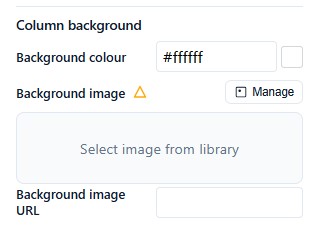
Using different background colours for sections of your emails can help the reader to differentiate parts of your content, and make it more visually appealing.
Change the Background behind the Content Area
While editing your email using the eNudge drag and drop editor:
Select a whole row where you want to add a background colour, by clicking in the left or right edges of the campaign content area.
The right hand panel will navigate to the Row Properties. Click in the Row Background Colour field.
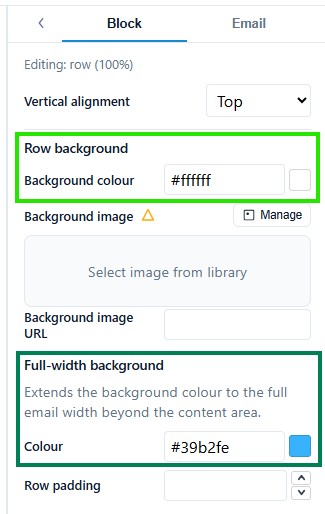
3. To change the colour, click in one of the colour fields, or click on the colour swatch. Either use your mouse to choose the required colour, or use the colour picker to select a colour from your screen.
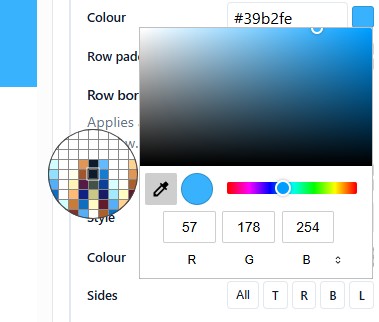
4. Alternatively, you can paste in the colour e.g. #39b2fe. To enter full transparency i.e. no colour, either delete the colour or type in ‘Transparent’.
Some email clients only support background images. If you are inserting a background image, ensure that you also set a background colour. The background colour will be shown in email clients that do not support background images.
Change the Background of the Row (i.e. to the edges)
Select the whole row by clicking in the left or right edges of the campaign content area.
The right hand panel will navigate to the Row Properties. Click in the Full-width Background Colour (see screen grab above).
- Use your mouse to select the desired colour, use the colour picker, or paste in the code for the colour.
Some email clients only support background images. If you are inserting a background image, ensure that you also set a background colour. The background colour will be shown in email clients that do not support background images.
Change the Background behind a Column
While editing your email using the eNudge drag and drop editor:
Select the column within a row, to which you want to add a background colour, by clicking in the left or right edges of the column area.
The right hand panel will navigate to the Column Properties.
In the Column Background section you can choose the required colour, type in the code or use the colour picker.