When creating a Message Series, you also have the option to set it up as an Action Responder, meaning that you can set each message in the series to only be sent to contacts who have chosen a positive or a negative option in one of the messages in your series, or not responded at all.
For example, for a series of messages about an event, you can send a different series to those people who have already said yes to attending, compared to those who either haven’t responded yet, and yet another series of messages to those who have said no.
To create an Action Responder type of Message Series you must tick the “Action Responder” option when creating your Message Series.
This article explains the additional functionality you will see in action responder type message series.
After choosing the action responder option you will see extra fields for the text to be used for the positive link, the negative link, and particular web pages / URLs to be attached to the action links in your emails. The extra options are shown below:
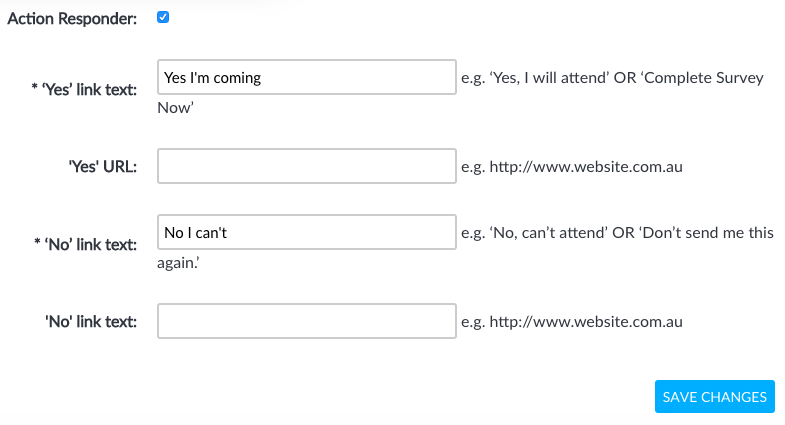
‘Yes’ link text: What you’d like to be displayed as the yes option in your email.
‘Yes’ URL: If you would like to redirect your message recipients to a specific web page after they select the Yes option, enter the web address (‘URL’) here. An example for this may be a Thank You page for subscribing to your event.
‘No’ link text: What you’d like to be displayed as the No option in your email.
‘No’ URL: If you’d like to redirect your message recipients to a specific web page after they select the No option, enter the URL here. For example this may be a page with the list of the other upcoming event dates.
As with a regular Message Series, until you set the status to active, messages attached to the series will not be sent out.
Setting up your Messages
After setting a message series as an Action Responder, you must select at least one of the possible action states for every message or your message won’t be sent to anyone e.g. ‘No Response’ in the “Send to Contacts Who:” section.

If you are sending the first email message in the series, you will have to check all the 3 options above, to ensure the email is sent to all contacts.
Also inside your message, include the additional ‘Yes Answer’ and ‘No Answer’ personalisation fields to provide the recipients with access to the tracked action links. An example is shown below.

The ‘Yes Answer’ and ‘No Answer’ links will appear in your email as below:
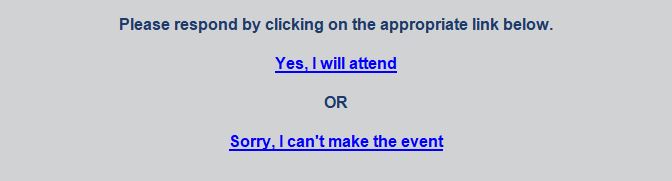
The positive and negative links will also be included in the footer of your Enudge email message.
Styling your yes / no links
Make sure that you add your yes and no answer links as text inside a paragraph block, rather than using a button block. That’s because a button block requires a link to be added to it, whereas eNudge will add the link at send time, with a unique URL per contact.
To achieve more of a “button-look”, without being a button, add a multi-column row, and then add borders to individual columns. We recommend that you use a white background for the action links because while the editor can style the personalisation field text as white on a coloured background, many email clients will ignore that, and show the links as the standard bright blue colour, with an underline, making the link very hard to see (on a dark background).
We recommend aiming for a look like the following:

Action Report
A message series which has been setup for action responder functionality provides you with the additional ‘Action Report’ which includes a list of each contact attached to the series, and whether they have clicked on your Yes response, No response, or have not yet responded to any messages within the series.
Please note, the emails will be sent out only after both the series and the individual email are set to ‘active’. The Action Report can be accessed by clicking on the ‘Action Report’ button on the Series Details page.
Changing a Response
Sometimes contacts will call or email you to let you know their response to your invite. When that happens, to ensure that the right messages go out to the right contacts and to ensure that the list of acceptances inside eNudge is accurate, you can change their response within the message series.
To change a response:
- Inside your Message Series, click on Contacts.
- Navigate to, or search for, the contact.
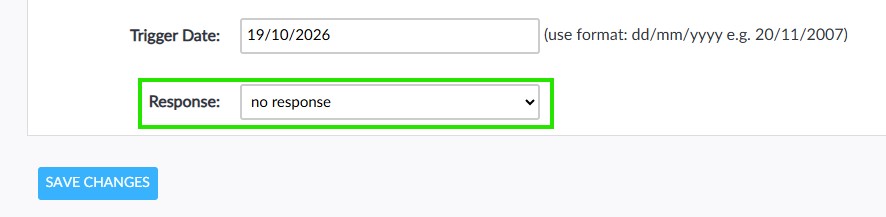
- Click on the ID in the Edit column for the relevant contact, and then scroll down to the very bottom of the screen where you will see the ‘Yes’, ‘No’ and ‘No response’ options in the ‘Response’ drop down. Choose the correct response, and click the ‘Save Changes’ button.