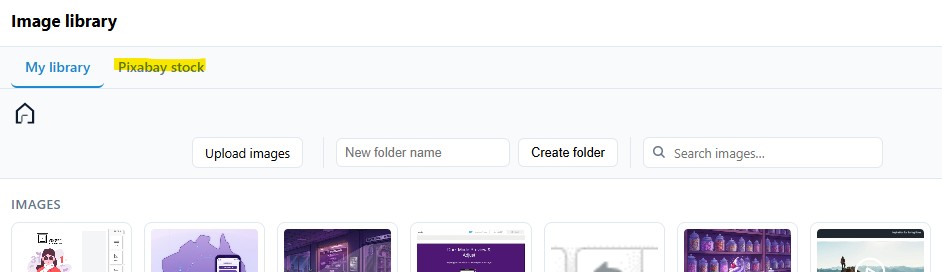
Inserting an image into your email campaign can be done either by inserting the URL / web address of your image, or by uploading your image file.
Inserting via a URL
Drag an image block into your email content.
Copy the URL of your image onto your clipboard.
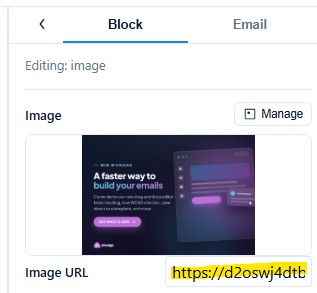
Click on the empty image block, to see the Image Properties in the right hand panel.
Paste the image address into the URL field. Your image will appear, with the size adjusted to fit the column.
Uploading
Drag an image block into your email content.
- Either:
- Drag an image from your computer’s file explorer into the image block, or
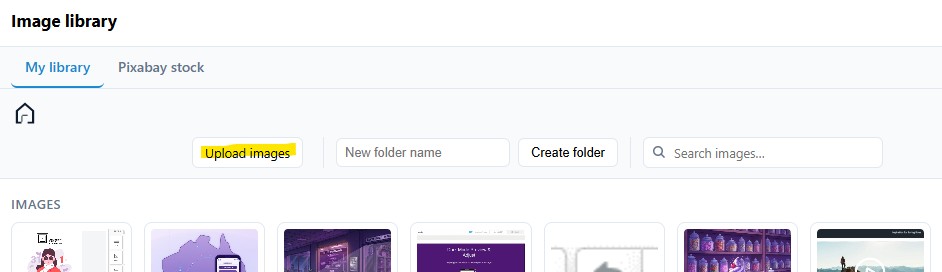
- Select the image block, and click the Manage button in the inspector, then click on the Upload Images button to upload one or more images, and then insert into your campaign.
Alternatively, if you need a new image, click on the ‘Pixabay Stock’ tab and then search to find either a photo or illustration that meets your requirements.