
When designing email content in eNudge using our drag and drop editor, you can add an image in behind your content blocks, giving you more design flexibility.
You can apply your background image to an individual row of content, a column within a row, or to your entire email.
A word of caution: not all email clients support background images. The following have limited support:
Microsoft Outlook (Windows 2007-2019)
Windows 10 Mail
Older Android Native mail apps
Because the older email clients don’t provide support, it’s important to include a solid colour background as a fallback.
Steps to add a background image – behind a row
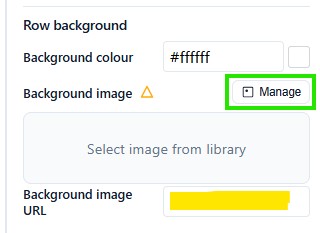
Select a row.
In the right hand panel, click on the Manage button to open the image browser where you can find or upload the desired image.
Click on the ‘Manage’ button and select or upload & insert your background image. Alternatively, you can paste in a URL pointing to your hosted image.
Make sure that you set a ‘Content area background colour’ that works with your design, as that will be shown for the situation where the email client doesn’t support background images.
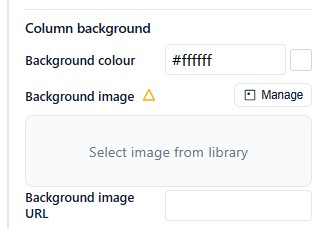
Adding a background image behind just one column is the same process as described above, except you first choose the desired column.
As usual, we recommend that you test your campaign design, including on mobile, to ensure you achieve the desired results.