
Once you have prepared your CSV file you are ready to import your contacts in bulk into your eNudge account. Including more information about each contact allows more granular targeting to specific segments and additional personalisation.
To ensure that the upload process works correctly, please note:
Each record must have either an email address or mobile phone number.
Make sure your CSV file does not contain blank rows.
Make sure your CSV file does not contain empty columns – this will cause your information to end up in the wrong Enudge fields.
If you supply a gender for your contacts, please enter either m or f.
If you supply the year of birth for your contacts, it must be a four digit number.
If you supply a value of HTML format for your contacts, it must be either yes (meaning send in HTML) or no (meaning send in text format). If you don’t supply this value, your contacts will be automatically set to receive HTML format emails.
We highly recommend that you include the firstname and surname of each contact, to help you more easily select contacts for your campaigns and personalise your messages.
We highly recommend that you include at least one category for each contact you upload, making it easier for you to attach this set of contacts to a campaign.
Important note: An upload may fail if the file is very large, which is why we recommend uploading a maximum of 30,000 contacts per csv file. For example, if you have a database of 120,000 contacts, you can split them up between 4 csv files, where each contain 30,000 values.
To upload your contacts into eNudge:
1. Click Contacts from the main navigation, and choose Import Contacts (or choose Import Contacts from the Quick Links menu).
2. From the list of import methods, choose CSV or text file.
3. Select your CSV File
Browse to find your CSV file on your computer.
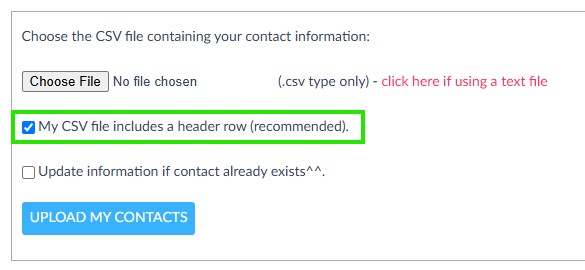
4. Header Row?
Tick the ‘My CSV file includes a header row’ if you have labelled your fields in the first row of your CSV file. Including a header row will help eNudge to automatically match the order of your columns in your CSV file with the right eNudge fields, so that help help make the process quicker.
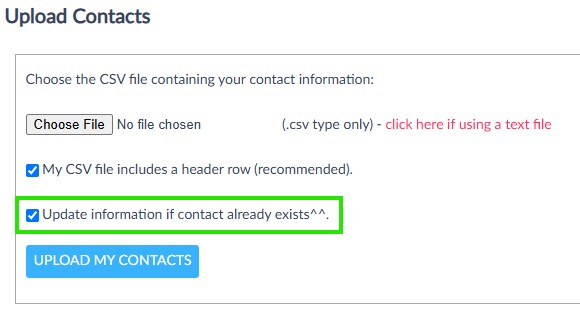
5. Update Information (optional)
Tick the ‘Update information if Contact already exists’ if you would like a pre-existing contact record for the specified email address or mobile number to be updated with the information supplied in the CSV file. If you don’t choose this option, any pre-existing contacts will be left unchanged, and that record in your CSV file will be ignored.
6. Click the ‘Upload my Contacts’ button.
Depending on how large your CSV file is and how fast your internet connection, it may take several minutes to upload.
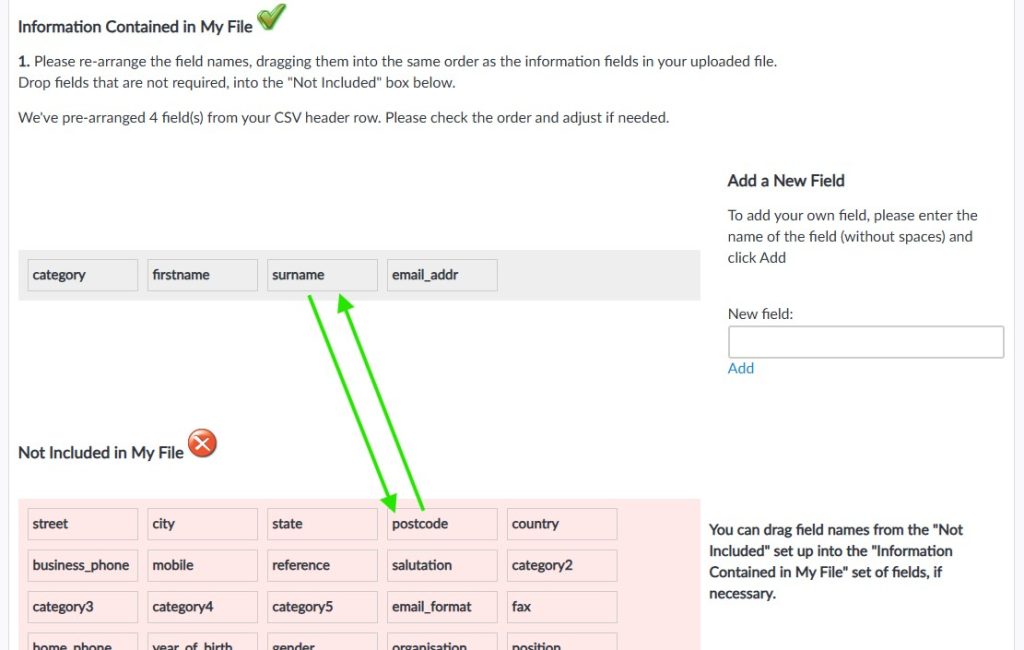
7. Check the order of fields – drag and drop to match your CSV file.
If you included a header row, eNudge will attempt to select & order the fields in the right order to match your file. If eNudge couldn’t work out which field to include, it will note the name of the field from your CSV header row.
Please check and drag the field names into the same order as in your CSV file. Drag into the ‘not included’ box, any fields that aren’t present in your CSV file. Drag up into the ‘included’ box, any fields that eNudge couldn’t match.
Refer to this article to learn more about how to import custom fields. If you are using custom fields, be sure to drag those up into the ‘included’ section, and place them in the right order to match your CSV file columns.
8. Click the ‘Process Field Order’ button to complete the import of your contacts.
You will see the following message on screen – click the OK button.
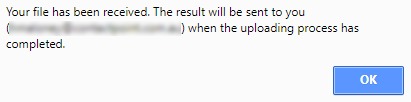
If you have uploaded a large number of contacts, it may take a few minutes for each record to be inserted. You can continue using your eNudge account, but you will want to wait for the processing to finish prior to attaching your contacts to a campaign.
9. Check your email.
Once your contacts have completed processing you will receive an email in your inbox advising you of the results of the import. Any errors are reported, along with the line number inside your CSV file at which the error occurred.